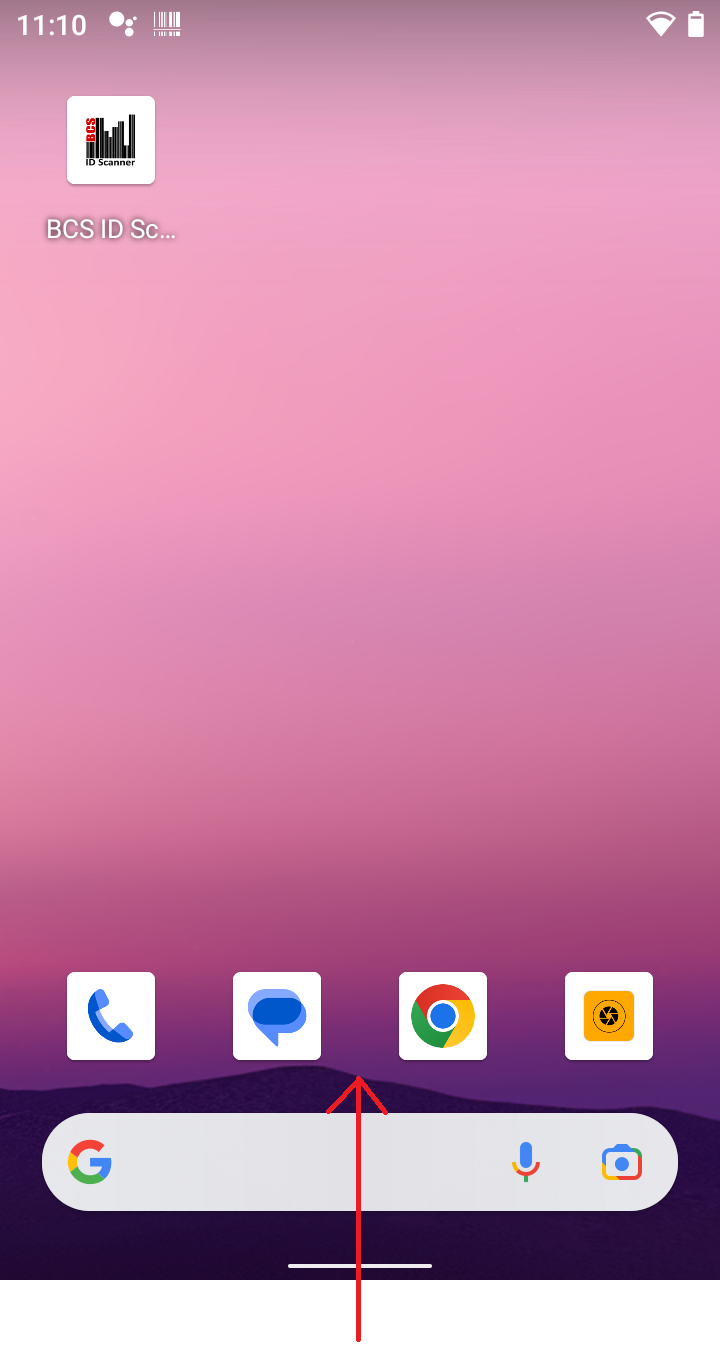
At the Rugged device Home screen, swipe up from the bottom to display the list of available apps.
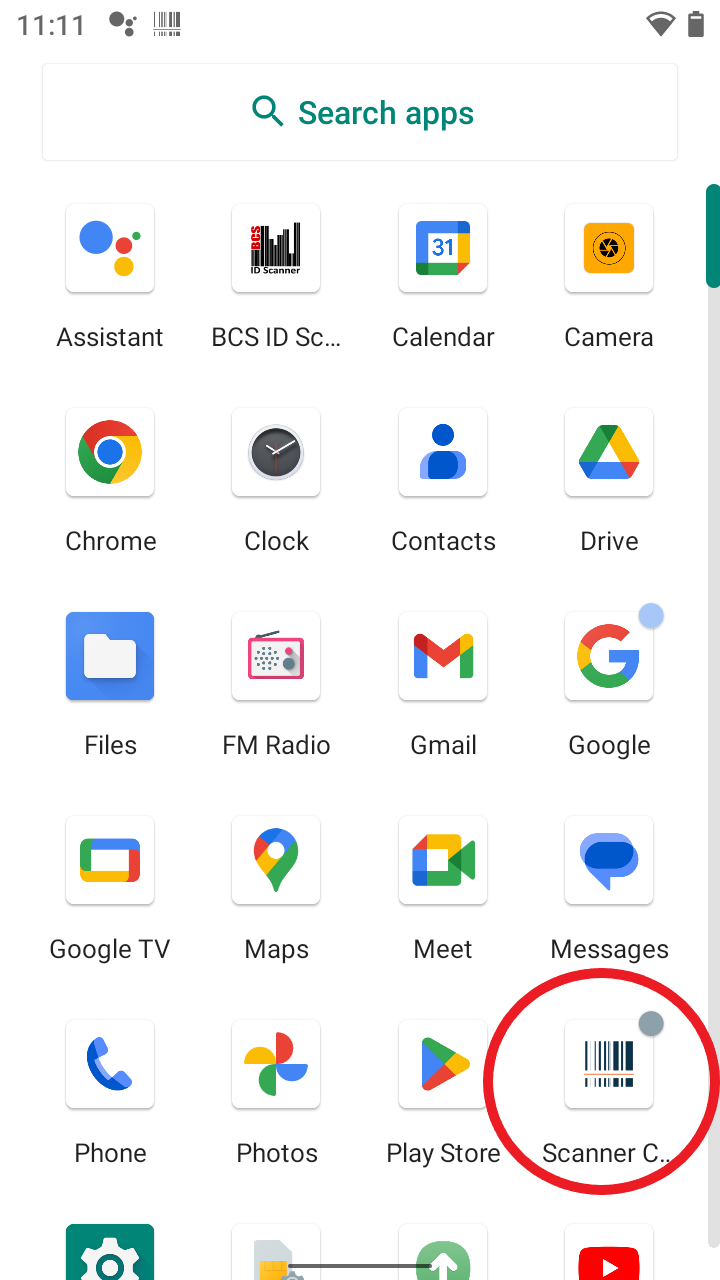
On the next screen, locate and start the Scanner Control app, as shown below
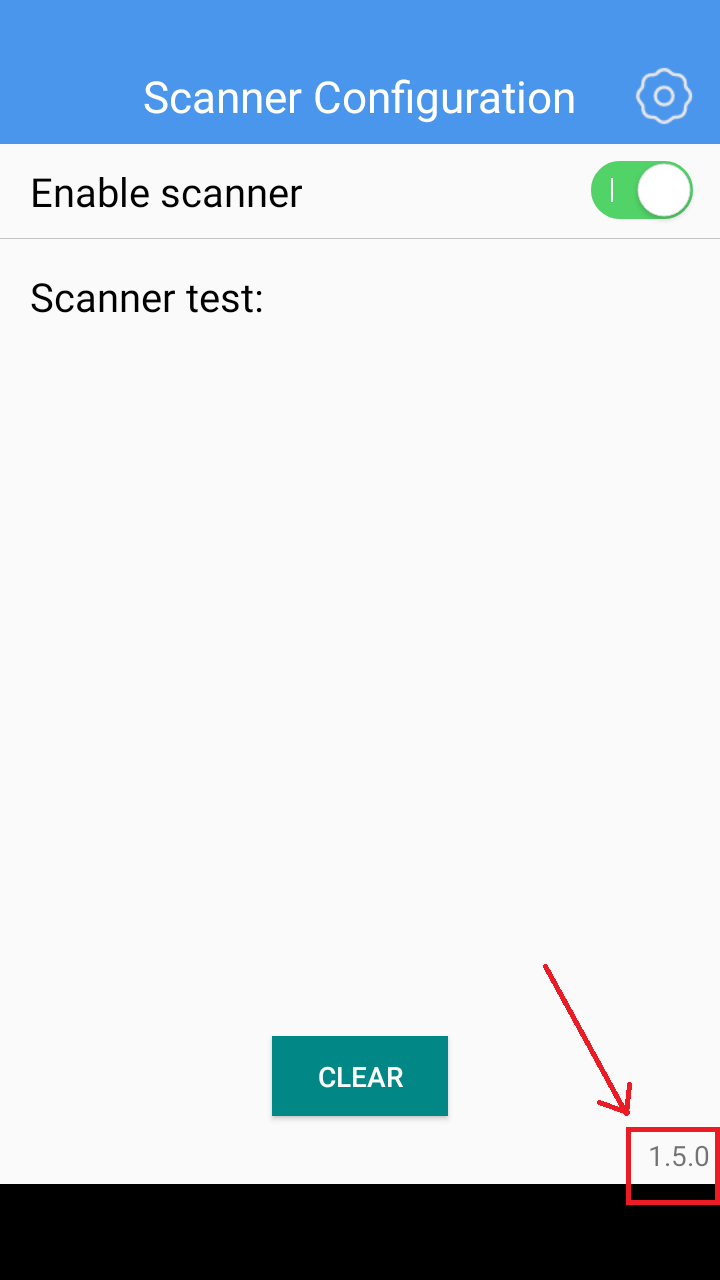
Once the Scanner Control app opens, verify app version, it is located at the lower right of the screen. Lastest version is 1.7.1, if this version is not installed, continue on with the next steps.
If you are reading this on your Rugged scanner, click the following link to download the latest version of the Scanner Configuration app. Once download skip to the 'Download Complete' section.
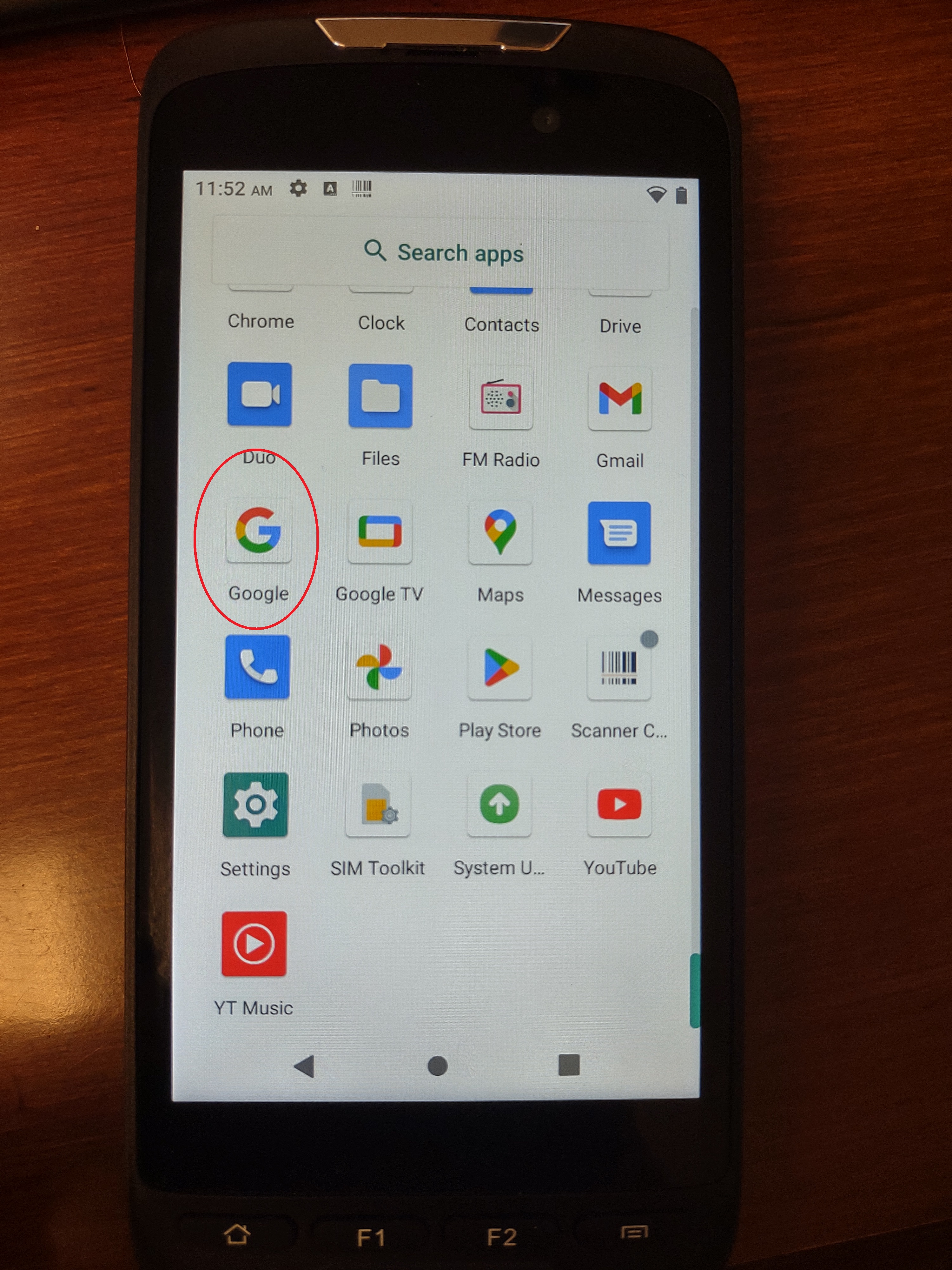
If you are reading this from another device, on your Rugged device return back to the device Home screen, swipe up from the bottom, and locate the 'Google' app and open the app.

Once the Google app opens you will see the search text area similiar to the image at the left, click the noted icon on the far right (red polygon in image) to open Google Lens.
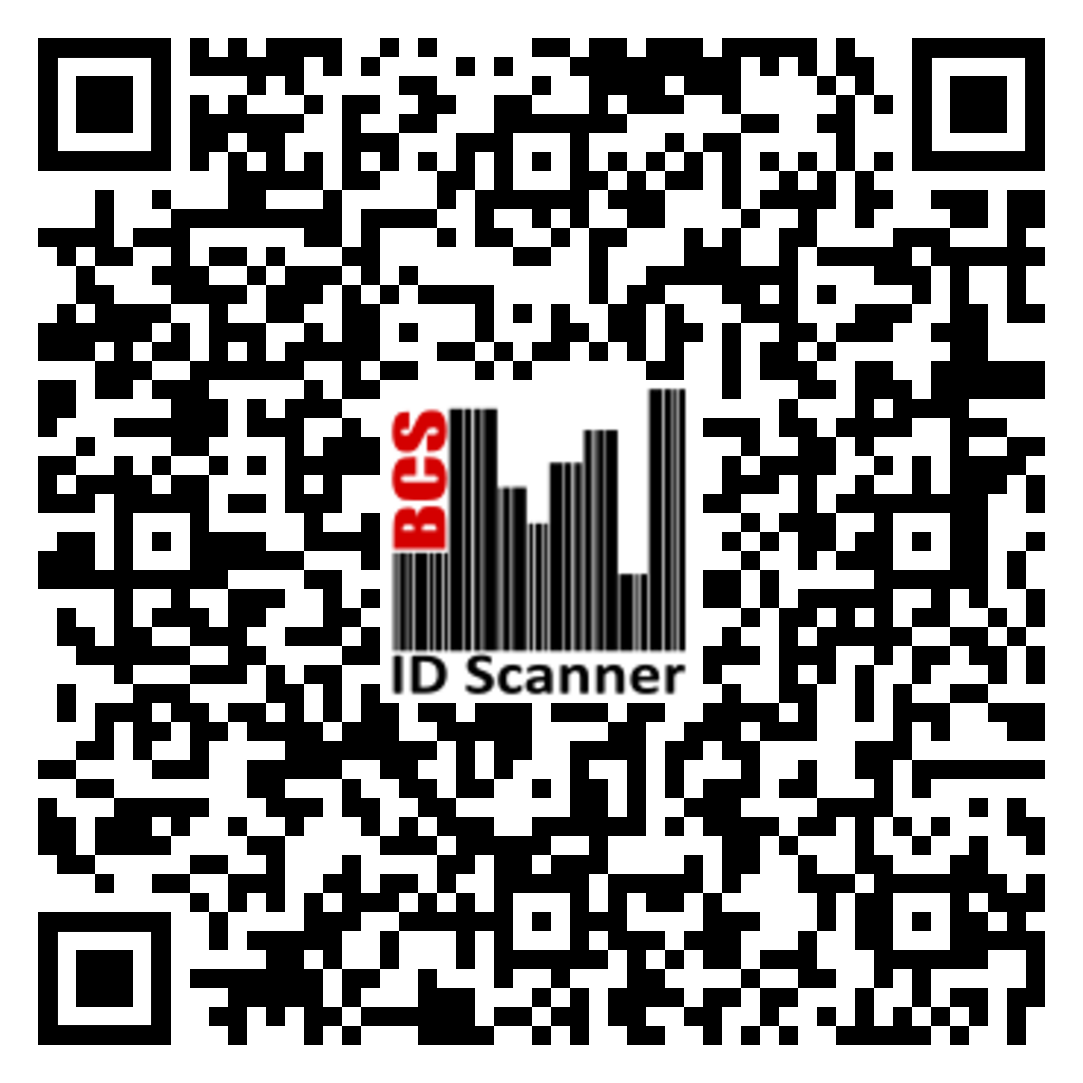
Point the camera at the QR code to the left and when the link pops up, click on it to download the latest scanner app version. (You may have to accept some permissions, etc if this is the first use of Google Lens)
Download Complete
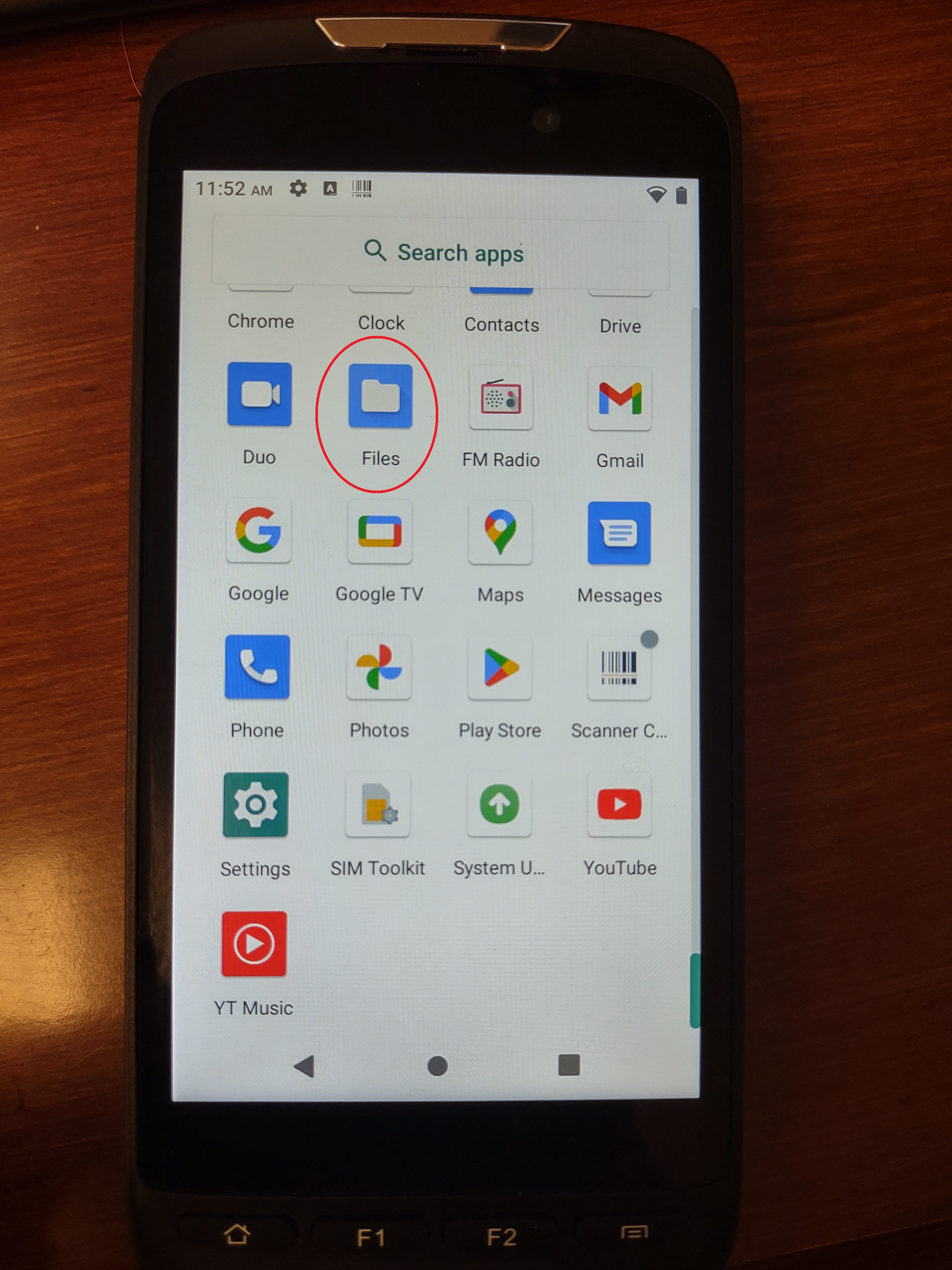
Once the dowload completes, again return to the home screen, and swipe up from the bottom, and locate and click the 'Files' application.
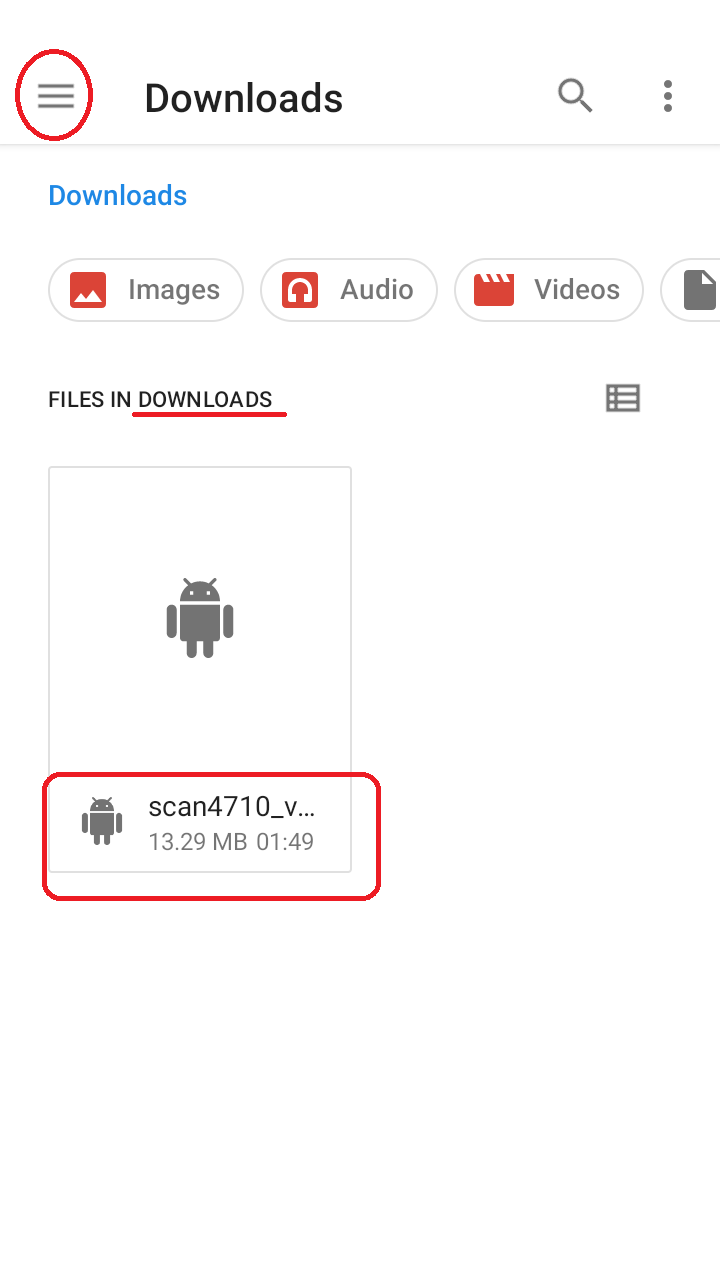
Once the Files application opens, take note of the current folder, if it is not 'Downloads', click the menu icon in the upper left, then locate and select 'Downloads' to set the current folder.
Once 'Downloads' is your current folder, you should see a file with a name starting with 'scan4710_', to install this, click on the file. You may receive a prompt about not allowing to install unknown apps. Click the 'Setting' button in the warning, then on the next screen, slide the 'Allow from this source' switch from left to right, it should turn green. Once enabled press the back arrow at the top left, and then click the 'Install' button.
You may again be prompted to perform an app scan, if prompted press the 'Scan app' button to continue installation. Once the scan completes, again click the 'Install' button to finally finish out the app install.
Once installation completes, a dialog box will display a confirmation, press the 'Open' button to start the new version of the Scanner Configuration app.
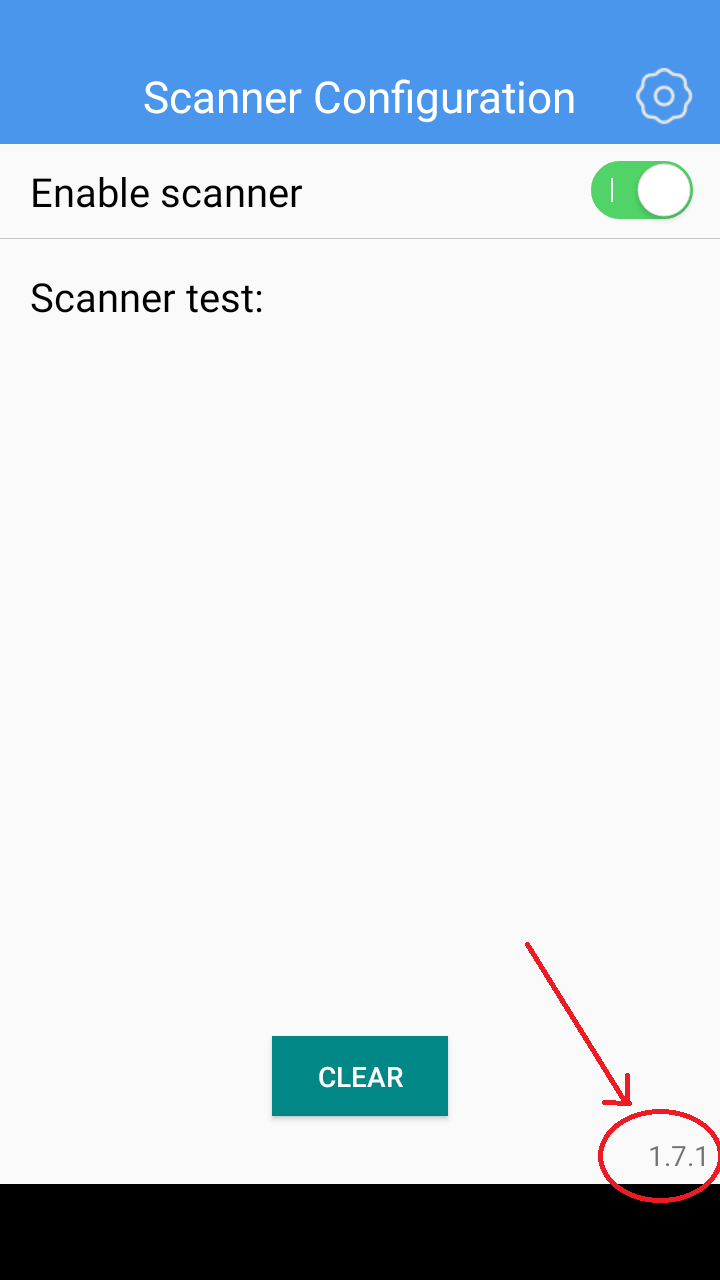
Verify the installed app version shows as 1.7.1 as shown to the left.
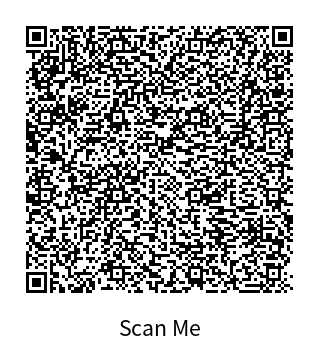
Next step is to import configuration settings to allow for the best scanning experience.
While still in the screen where the 'Enable Scanner' setting is located, scan the barcode to the left with your Rugged device hardware scanner. Once scanned you will see a small bubble with 'import completed' display for a brief period of time.
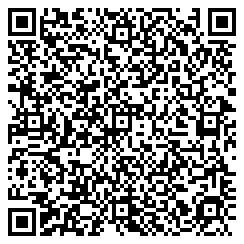
Next step is to import the barcode symbologies settings so that only barcodes used on Id are scanned.
While still in the screen where the 'Enable Scanner' setting is located, scan the barcode to the left with your Rugged device hardware scanner. Once scanned you will see a small bubble with 'import completed' display for a brief period of time.
To verify the barcode scanner is working, you can press the side button and scan an Id barcode, once scanned verify some text shows up under the ‘Scanner test’ section of the screen.