Rugged Device Wifi Configuration
(Click images to enlarge)
Your device already has the BCS App installed and registered to your account, in order to scan your device will need access to the internet thru your local Wifi network.
The following steps will guide you through Wifi configuration.
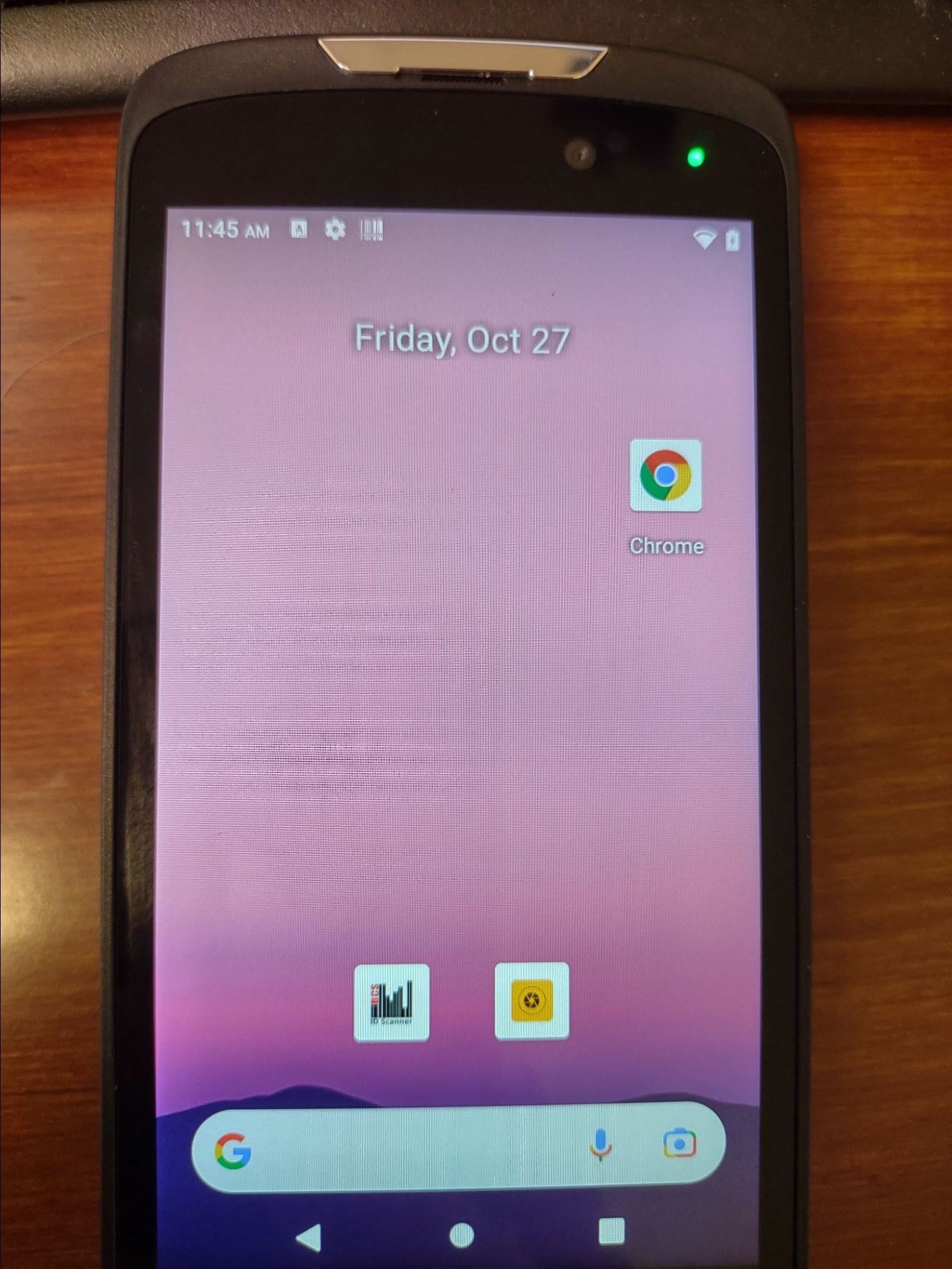
Get to the Android home screen, the easiest way is to press the circle at the bottom of the screen in the middle of the button row. You should see a screen similar to below
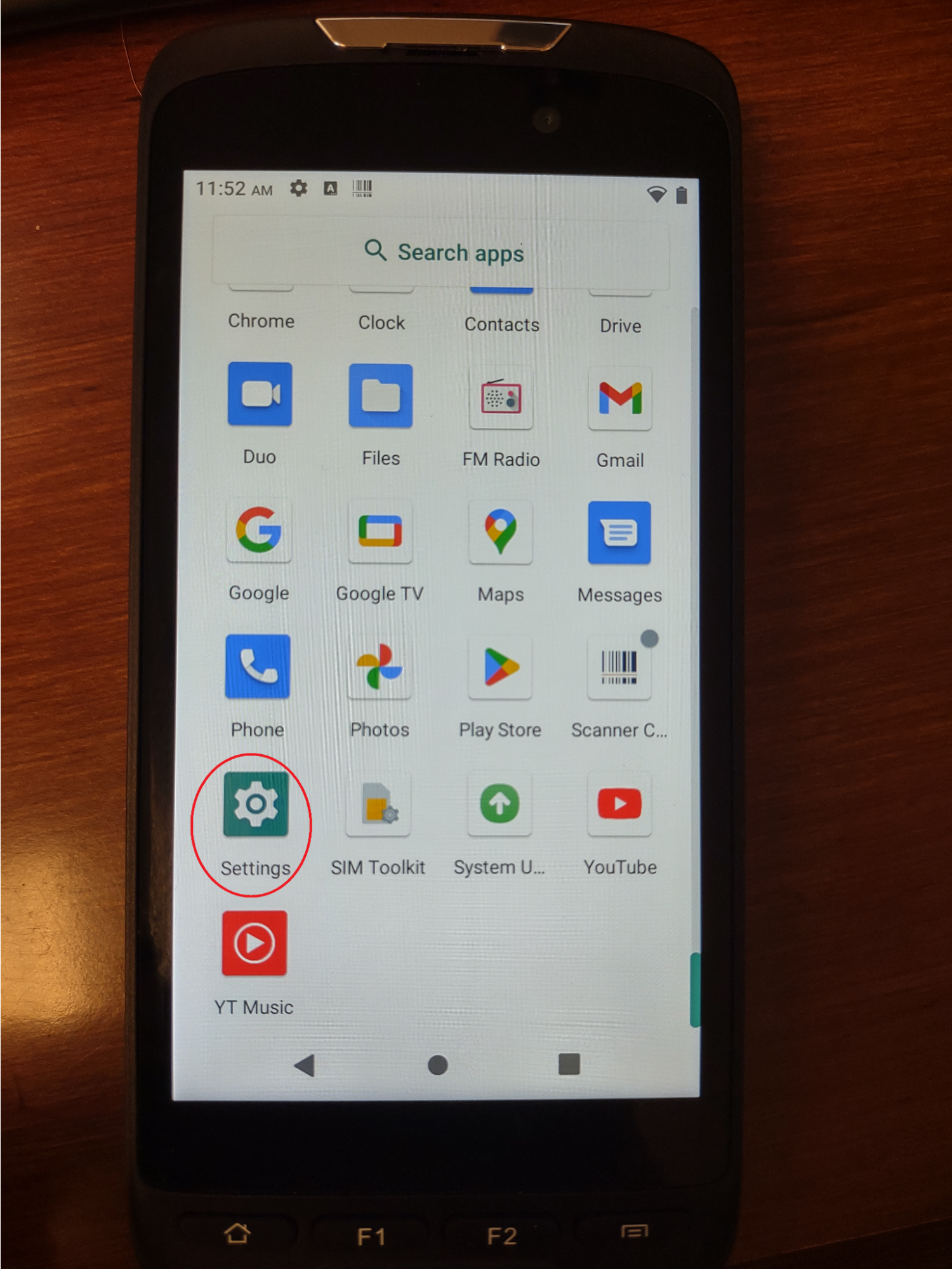
Now swipe up from the bottom of the screen, You should now see something similar to this
Locate and click the circled app icon circled in the image above to bring up the Settings app.
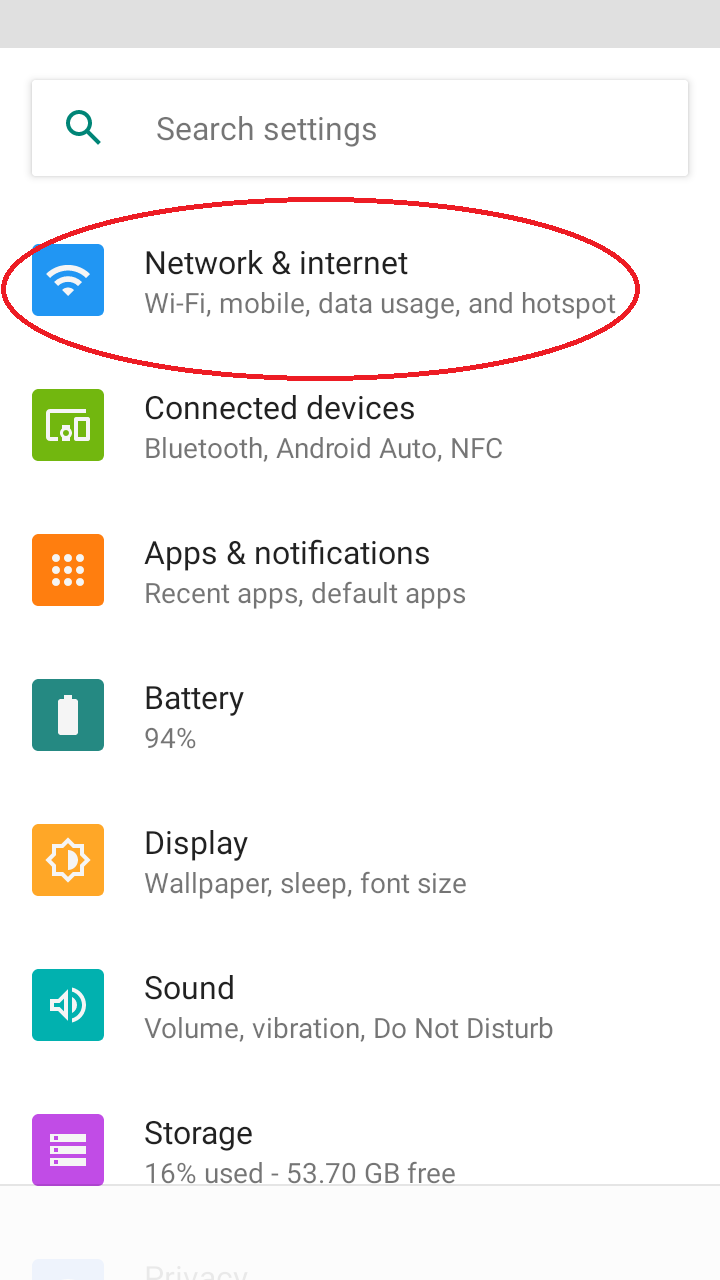
Once opened it should look like this
Press the Network & Internet menu item circled above,
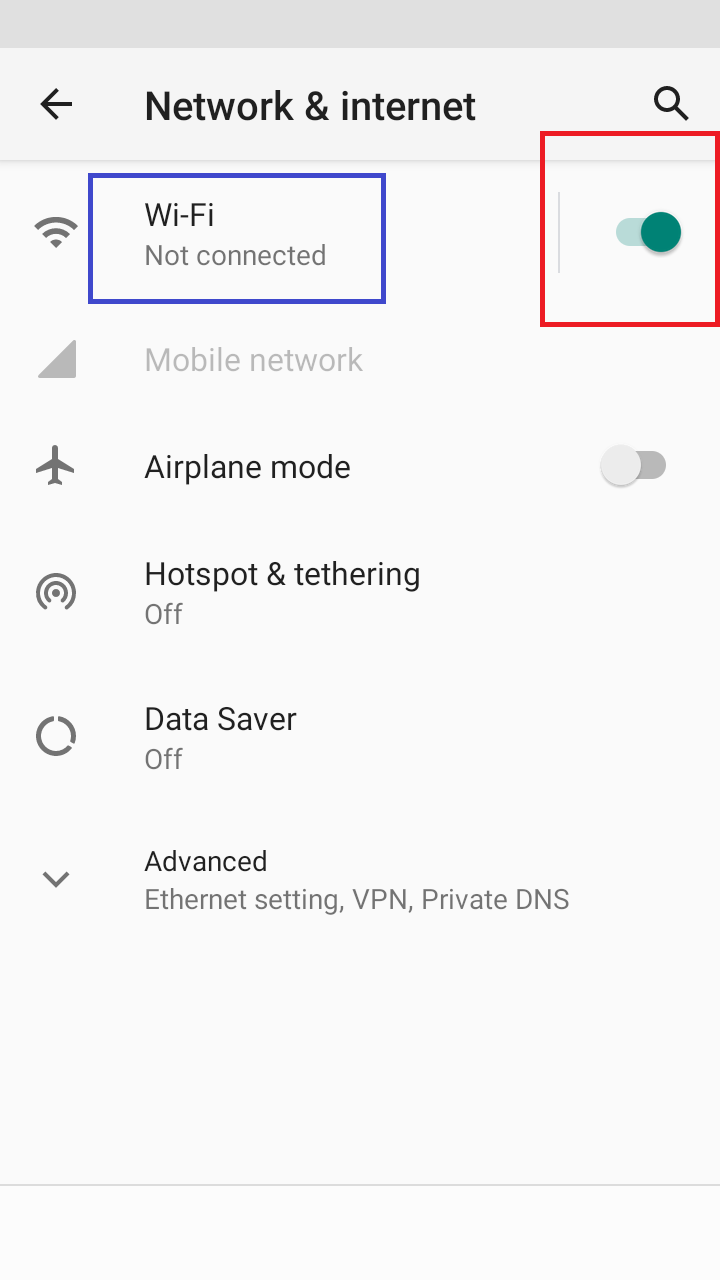
Next screen should looks like the screen below
If not already done so, enable Wi-Fi by sliding the switch (red square) to the right of the Wi-Fi label to the right to enable the devices Wifi, it will turn green.
Then click the Wi-fi label (blue square) to configure and connect to your Wi-Fi network.
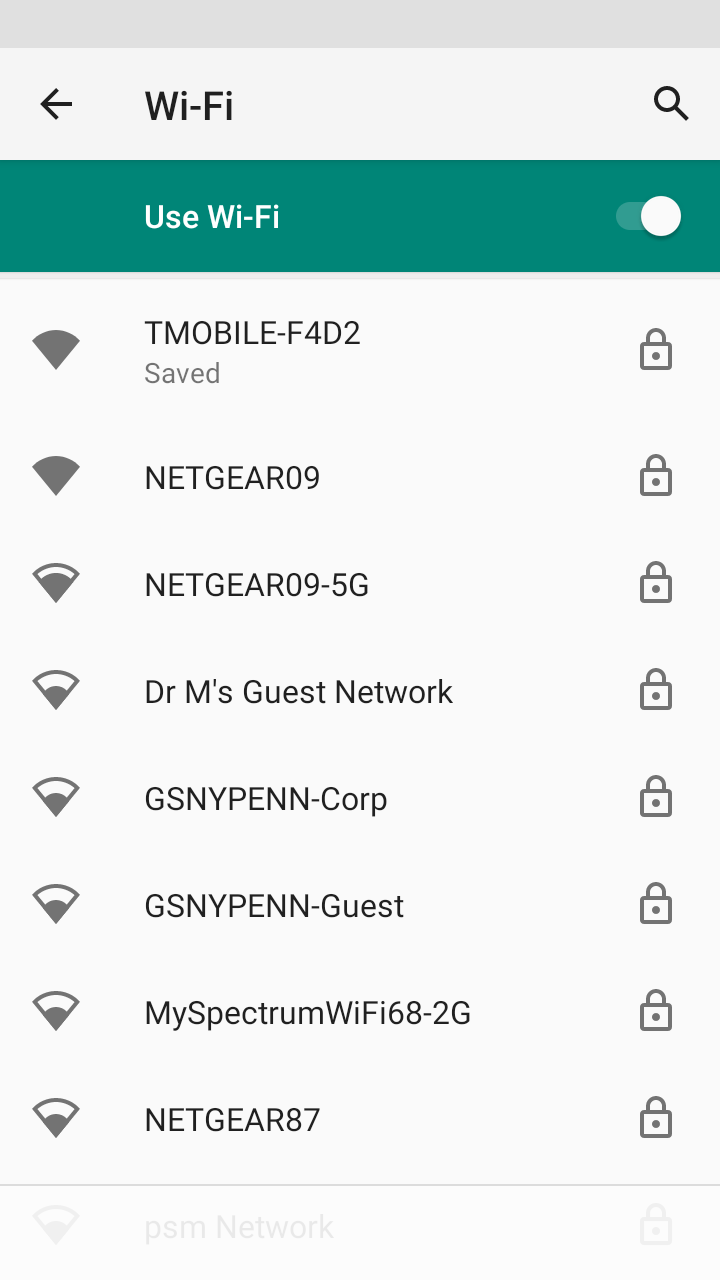
A screen similar to the following should appear
From the list of nearby Wifi networks, select the network you want to connect and have access to. Most likely this will be password protected.
You will be prompted to enter your access password for your network, and the device will complete login to the Wi-fi network.
NOTE: the list of available networks you have will be different from the example shown above
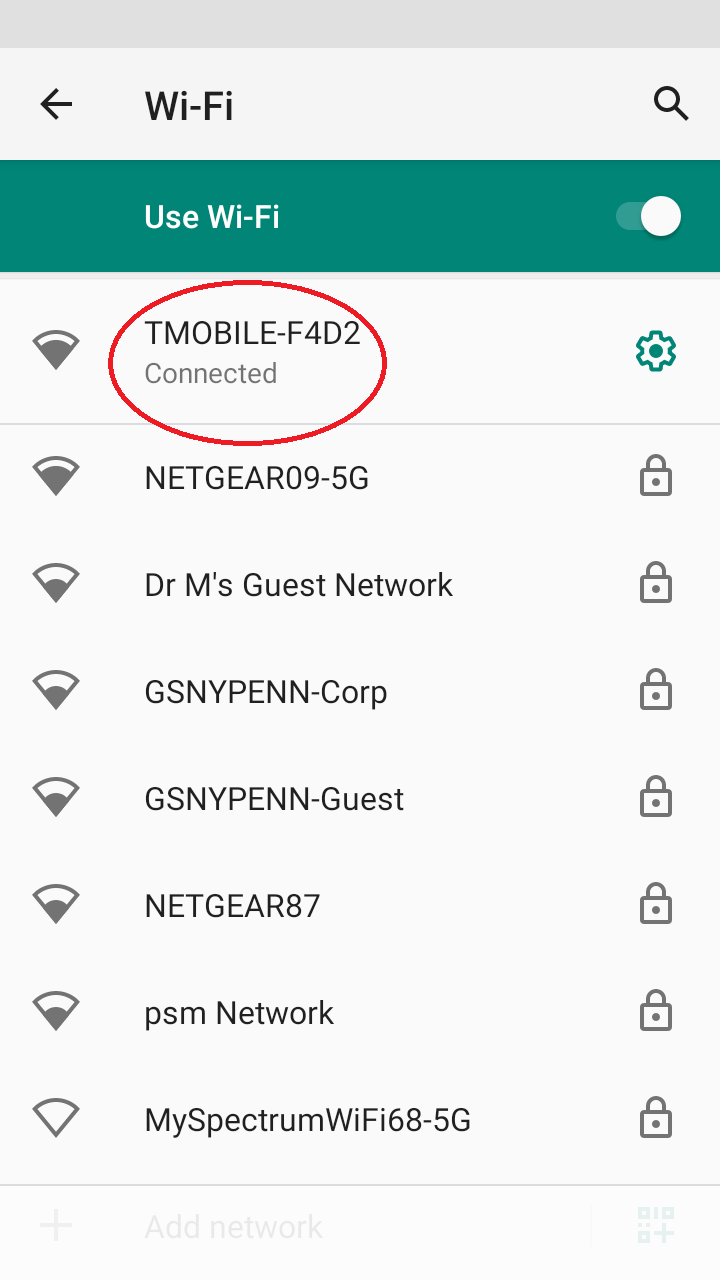
Once connected to the network, you will be returned to the Wi-Fi page and you should see your selected network at the top with the word Connected as shown above.
At this point you can open the Bar & Club Stats application and begin to use the application.
In the BCS app, on the main screen, mid way down on the left there should be a green circle with an ‘Online’ indication, which indicates BCS is online and can connect to our servers.
You can also verify internet connectivity by opening the Chrome application and browser to any website. If the site loads, your internet connection is working.